Complete visual user manual for BartaAI for Windows —from activating your Lemon Squeezy license key on the first-launch Welcome screen to dictating anywhere with Caps Lock or F8. Click any screenshot below to inspect it in full-screen view.
First-Launch Flow · Step 1
Step 1: Welcome Screen & Activating Your License Key
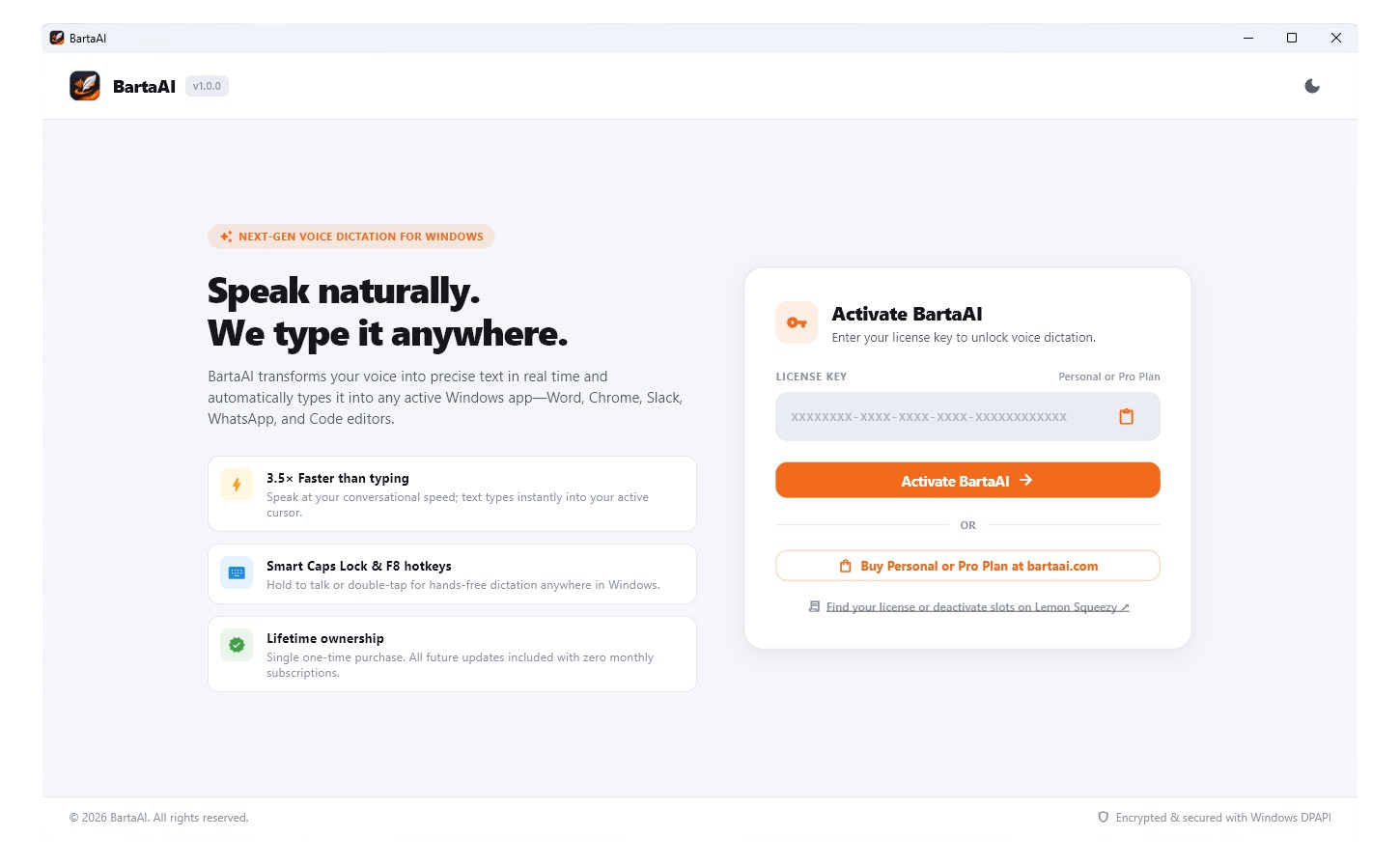
When you install and open BartaAI for the very first time on your Windows PC, the application greets you with the Welcome & License Activation Screen
Screen 1 of 8: First-Launch Welcome & License Activation Screen🔍 Click for Full Screen
How to Retrieve & Activate Your License Key
1
Copy Your License Key from Lemon Squeezy
When you purchase BartaAI (either the Personal Plan — $99 for 1 active device or the Pro Plan — $199 for 20 active devices), your order and license key are delivered via Lemon Squeezy. You can copy your license key directly from your order confirmation email or anytime from the official Lemon Squeezy portal: https://app.lemonsqueezy.com/my-orders ↗
2
Paste into "Activate BartaAI" on the Welcome Screen
On the right side of the Welcome screen under Activate BartaAI (LICENSE KEY · Personal or Pro Plan), paste your key (format: XXXXXXXX-XXXX-XXXX-XXXX-XXXXXXXXXXXX) or click the orange clipboard icon inside the input box to paste automatically.
3
Click "Activate BartaAI →"
Click the orange Activate BartaAI → button. BartaAI verifies your license online, encrypts and secures it locally on your PC using Windows DPAPI, and immediately transitions you to the main Dashboard screen.
Step 2: Main Dashboard & Instant Recording (No API Key Needed)
As soon as your license is activated, the main Dashboard Screen opens. From this moment on, you can dictate anywhere in Windows using Caps Lock or F8—with no extra setup and no external API key required.
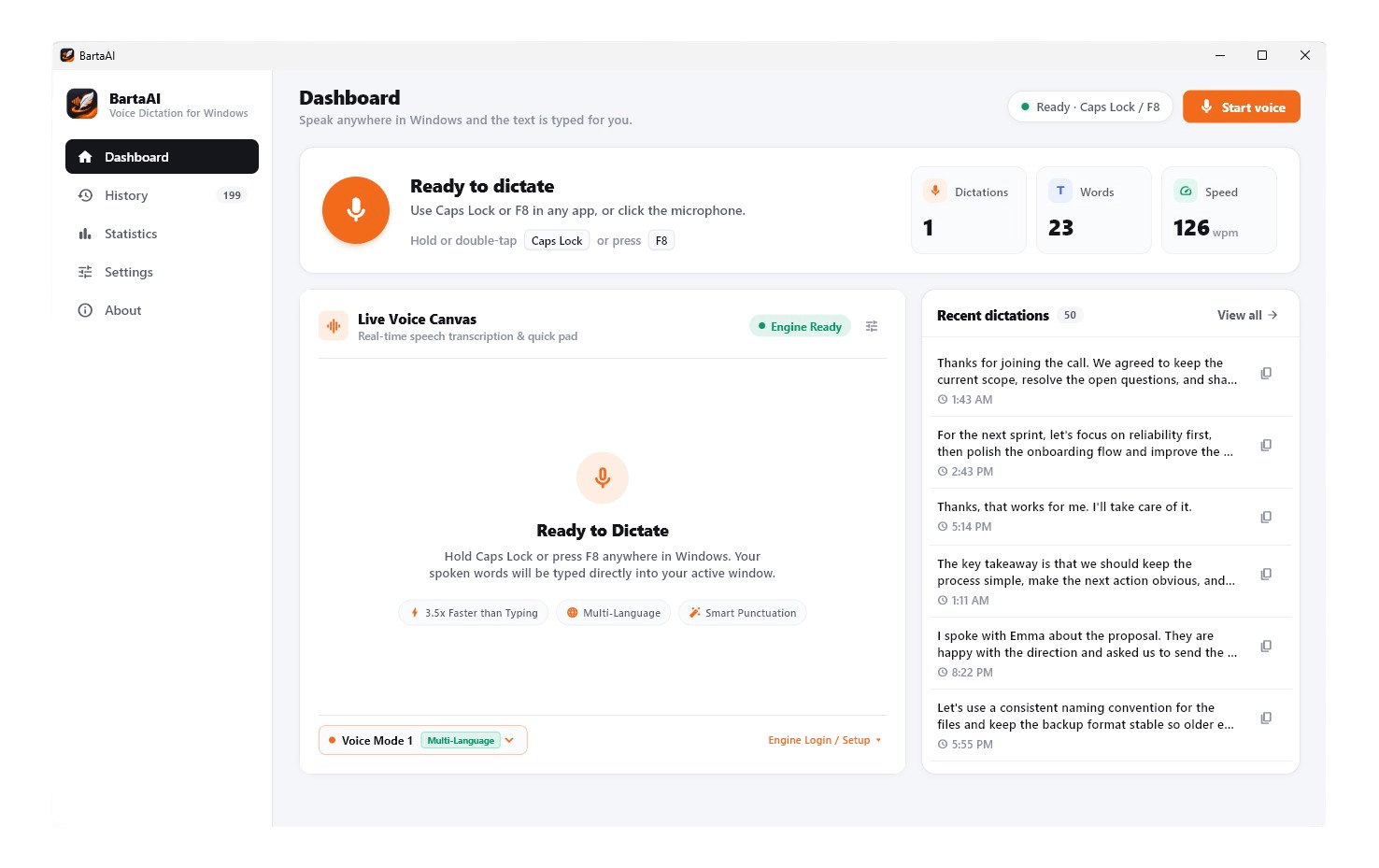
Screen 2 of 8: Main Dashboard — Ready to Dictate, Live Voice Canvas & Recent Dictations🔍 Click for Full Screen
How to Start Dictating Immediately from the Dashboard
Instant Global Hotkeys (Caps Lock or F8): Place your cursor inside any Windows application (Word, Chrome, Slack, WhatsApp, email, or code editors). Hold Caps Lock to speak, double-tap Caps Lock for hands-free continuous dictation, or press F8.
Zero External API Key Setup: Notice the green ● Engine Ready badge on the Live Voice Canvas. BartaAI's built-in multi-language speech engine works out of the box without requiring OpenAI, Google Cloud, or third-party developer keys.
Voice Mode 1 & Voice Mode 2 Selector: At the bottom-left of the Live Voice Canvas, use the branded pill dropdown (● Voice Mode 1 Multi-Language ▾) to switch between speech modes:
Voice Mode 1 (Instant Dictation): Ready out of the box. Requires no login, no account, and no setup—simply start dictating immediately.
Voice Mode 2:To activate Voice Mode 2, simply click Engine Login / Setup ▾ and complete a quick, 100% free website signup—no credit card or paid subscription required.
Today's KPI Counters & Recent Dictations: Track today's Dictations, Words, and average speaking Speed (wpm) in the top hero bar, and copy any recent transcript in one click from the Recent dictations panel on the right.
Screen 3 · History Tab
3. Searchable Dictation History & Safe Clear All
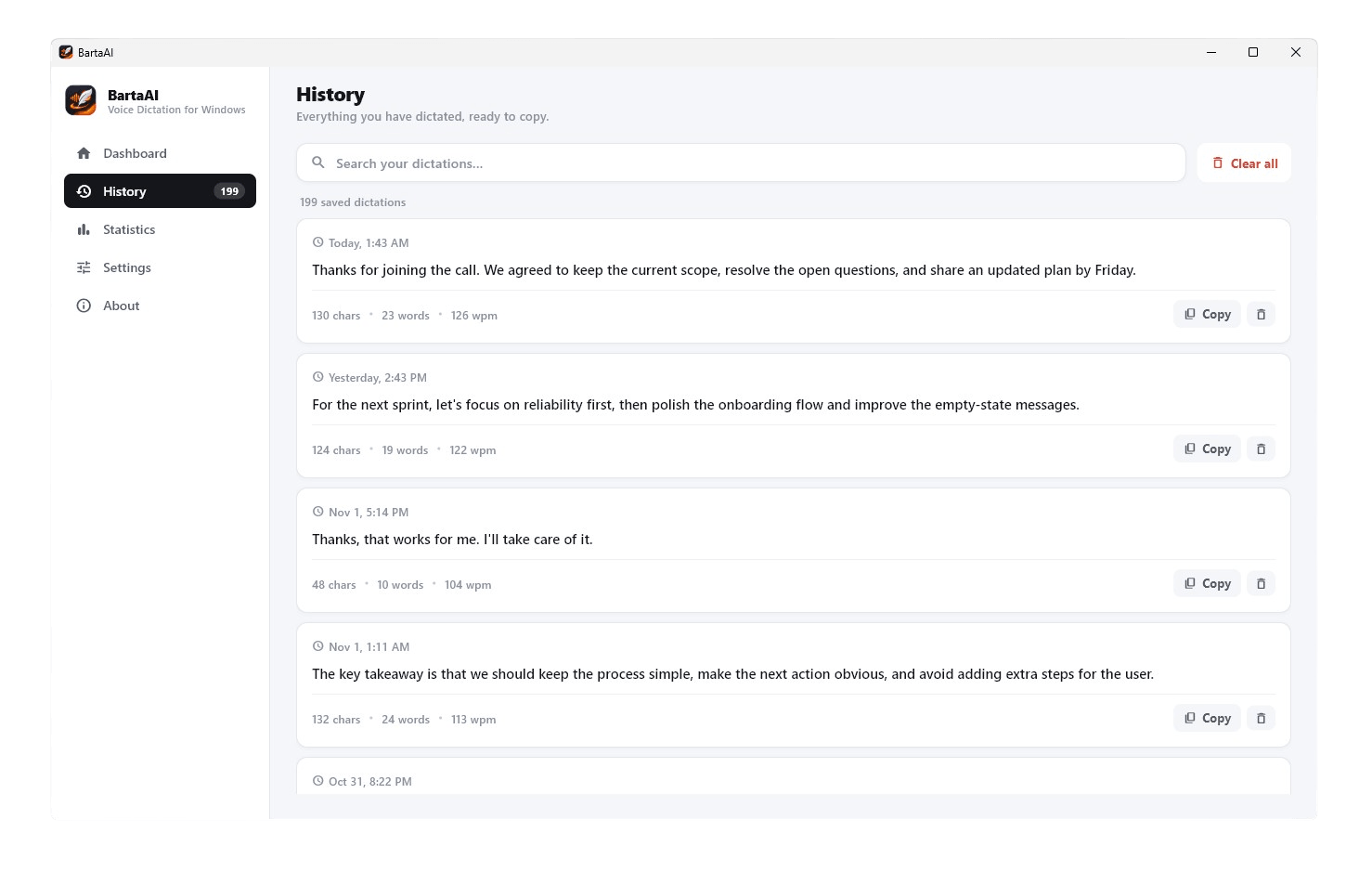
Every voice dictation session is automatically saved to your local database and displayed in the History tab ("Everything you have dictated, ready to copy.").
Screen 3 of 8: History Screen — Instant Search, Word/WPM Metadata & One-Click Copy🔍 Click for Full Screen
Key Features on the History Screen
Real-Time Keyword Search: Type into Search your dictations... to filter through hundreds of saved transcripts (e.g., 199 saved dictations) instantaneously.
Detailed Session Metadata: Each card logs the exact date/time (e.g., Today, 1:43 AM), full dictated text, character count (130 chars), word count (23 words), and speaking speed (126 wpm).
One-Click Copy & Delete Controls: Click Copy on any card to copy the text to your Windows clipboard, click the trash icon to remove a single entry, or use the top-right red Clear all button (protected by a two-step confirmation).
Screen 4 · Statistics Tab
4. Productivity Statistics, Time Ranges & 24-Hour Heatmap
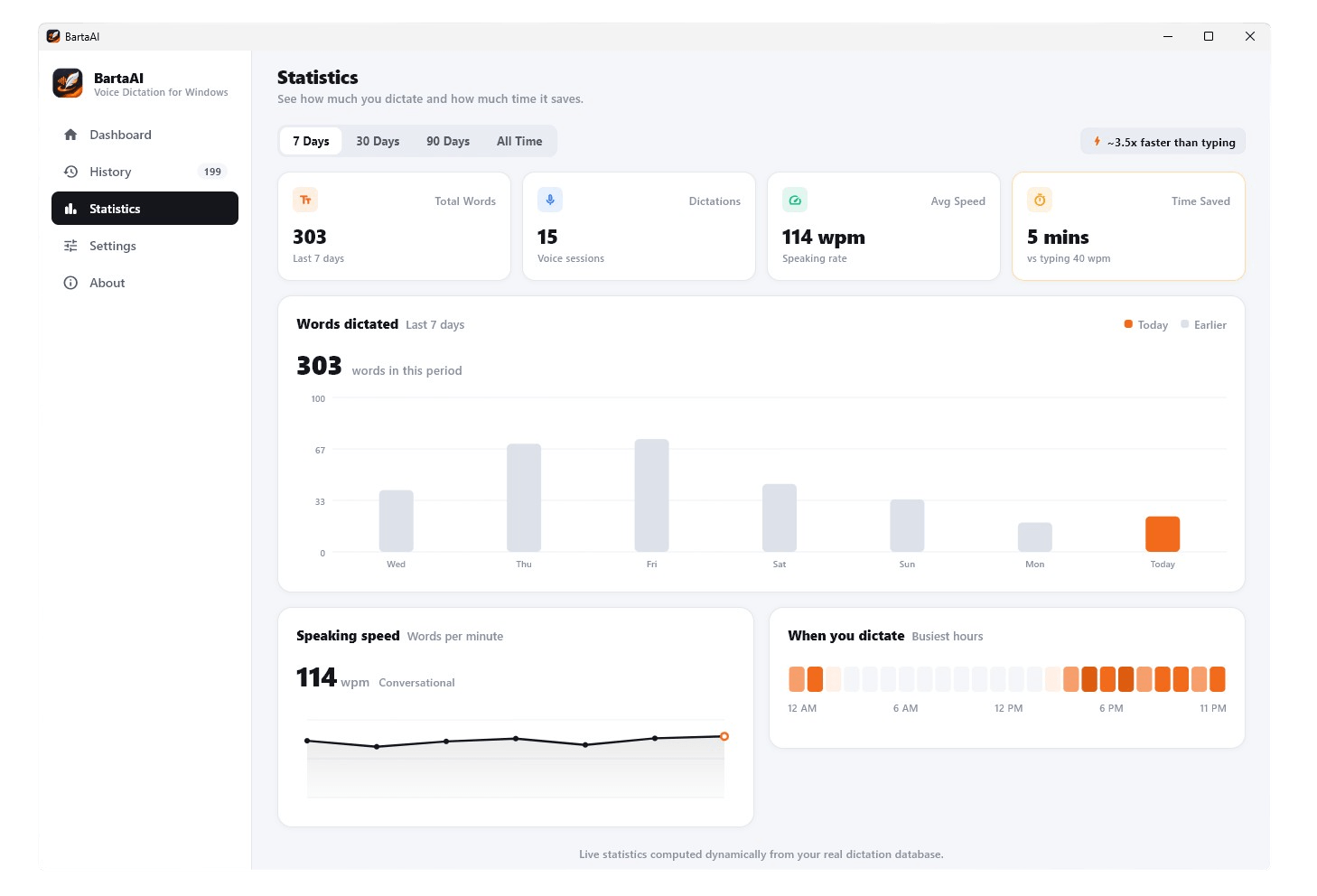
The Statistics screen ("See how much you dictate and how much time it saves.") computes live metrics dynamically from your real dictation database on your PC.
Screen 4 of 8: Statistics Screen — 7/30/90 Days & All Time Analytics + Busiest Hours Heatmap🔍 Click for Full Screen
Analytics Modules & Time Range Filters
4 Time Range Filters: Switch effortlessly between 7 Days, 30 Days, 90 Days, and All Time in the top-left bar.
4 Summary KPI Cards: View Total Words, total Dictations (voice sessions), Avg Speed in WPM, and Time Saved compared against a 40 WPM typing baseline.
Words Dictated Bar Chart: Visualizes your daily word output with orange highlights for Today and gray bars for Earlier days.
Speaking Speed Trend & Busiest Hours Heatmap: Tracks your conversational speaking rate (WPM) over time alongside a 24-hour heatmap (12 AM to 11 PM) highlighting your peak dictation hours.
Screen 5 · Settings (General & Appearance)
5. General Windows Behavior, Voice Mode Engine & Appearance
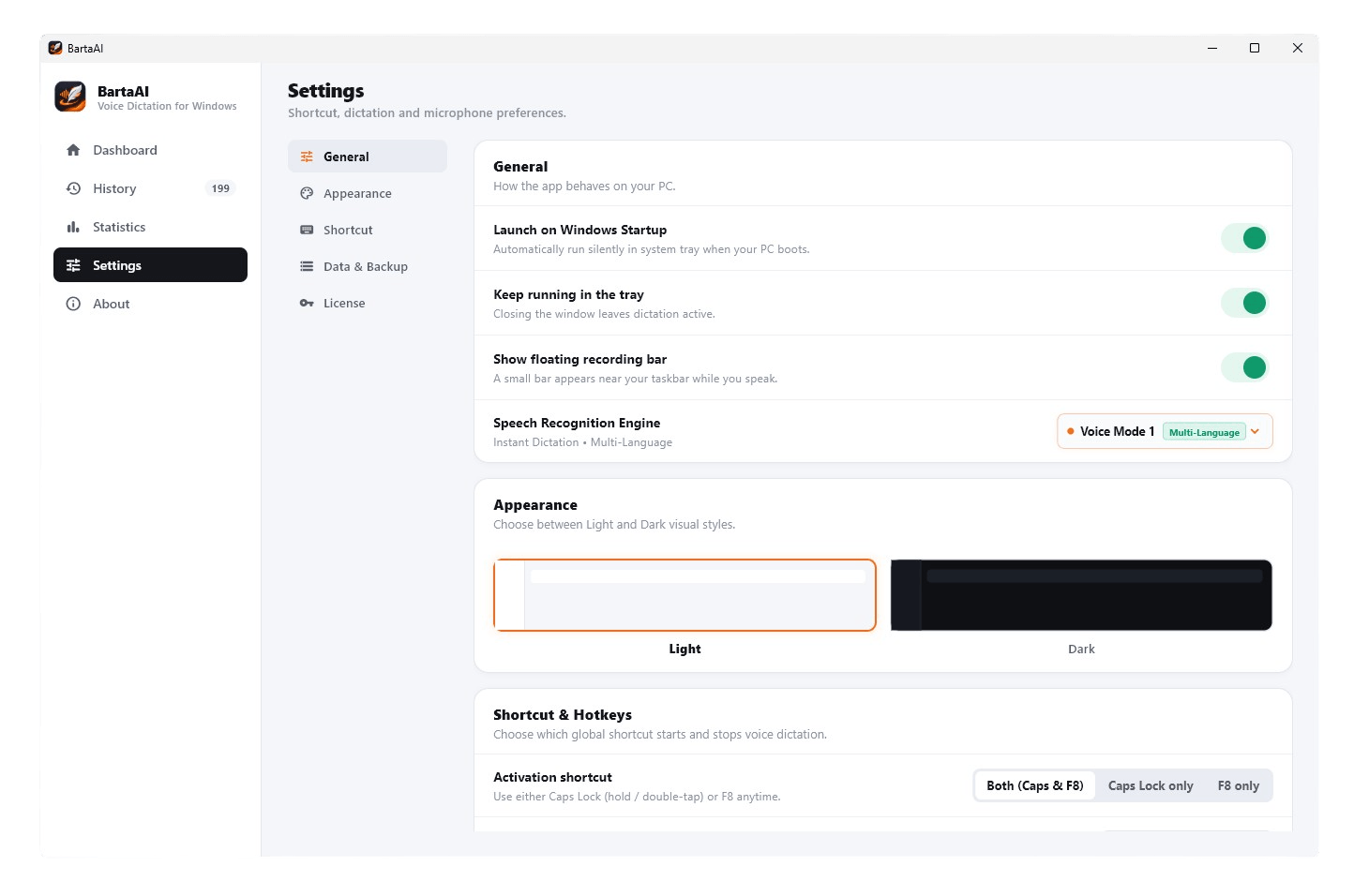
Under Settings → General and Appearance, you can customize how BartaAI launches on Windows, behaves in the system tray, and renders its visual theme.
Screen 5 of 8: Settings — General Startup/Tray Toggles, Speech Engine & Light/Dark Appearance🔍 Click for Full Screen
General & Appearance Controls
Launch on Windows Startup: Automatically run BartaAI silently in the system tray when your PC boots.
Keep running in the tray: Closing the main window leaves voice dictation active in the background.
Show floating recording bar: Displays a compact status bar near your Windows taskbar while you speak.
Speech Recognition Engine: Switch between Voice Mode 1 (Multi-Language) (zero setup or account required) and Voice Mode 2 (Multi-Language) (requires a quick 100% free website signup) directly from Settings or the Dashboard.
Appearance (Light & Dark): Switch between crisp Light mode and high-contrast Dark mode in one click.
Screen 6 · Settings (Shortcuts & Data Backup)
6. Global Shortcut Modes, Double-Tap Speed & Data Backup
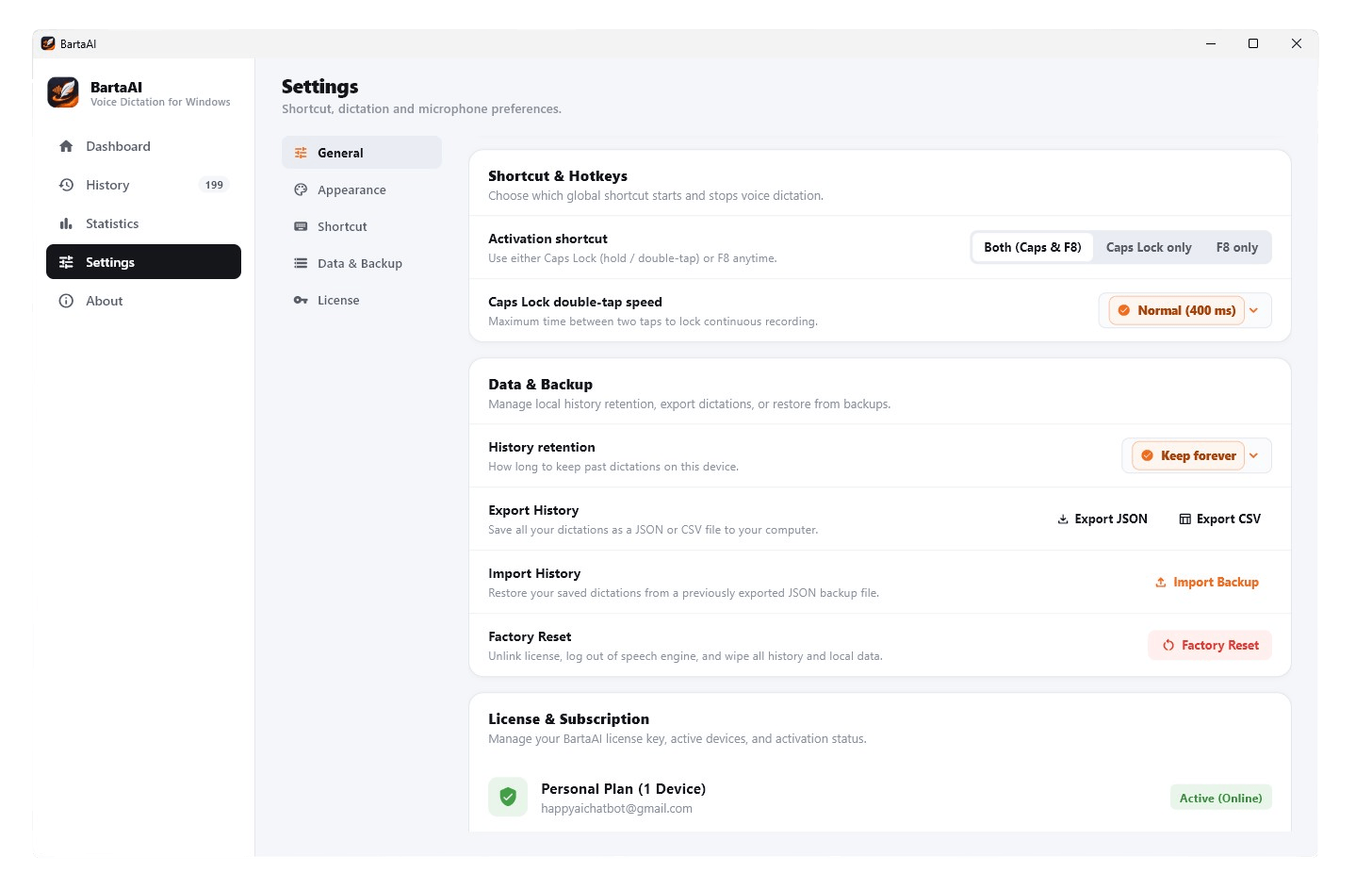
Under Settings → Shortcut and Data & Backup, configure your preferred activation keys, double-tap timing, local retention window, and JSON/CSV exports.
Screen 6 of 8: Settings — Shortcut & Hotkeys (Caps Lock / F8) + Data Retention & Export🔍 Click for Full Screen
Shortcut & Data Controls
Activation shortcut: Choose Both (Caps & F8), Caps Lock only, or F8 only.
Caps Lock double-tap speed: Set the maximum interval between two taps to lock continuous hands-free recording—Fast (250 ms), Normal (400 ms), or Relaxed (600 ms).
History retention: Choose how long to keep past dictations on your PC (Keep forever, 90 days, 30 days, or 7 days).
Export & Import History: Click Export JSON or Export CSV to save your transcripts locally, or click Import Backup to restore from a JSON backup file.
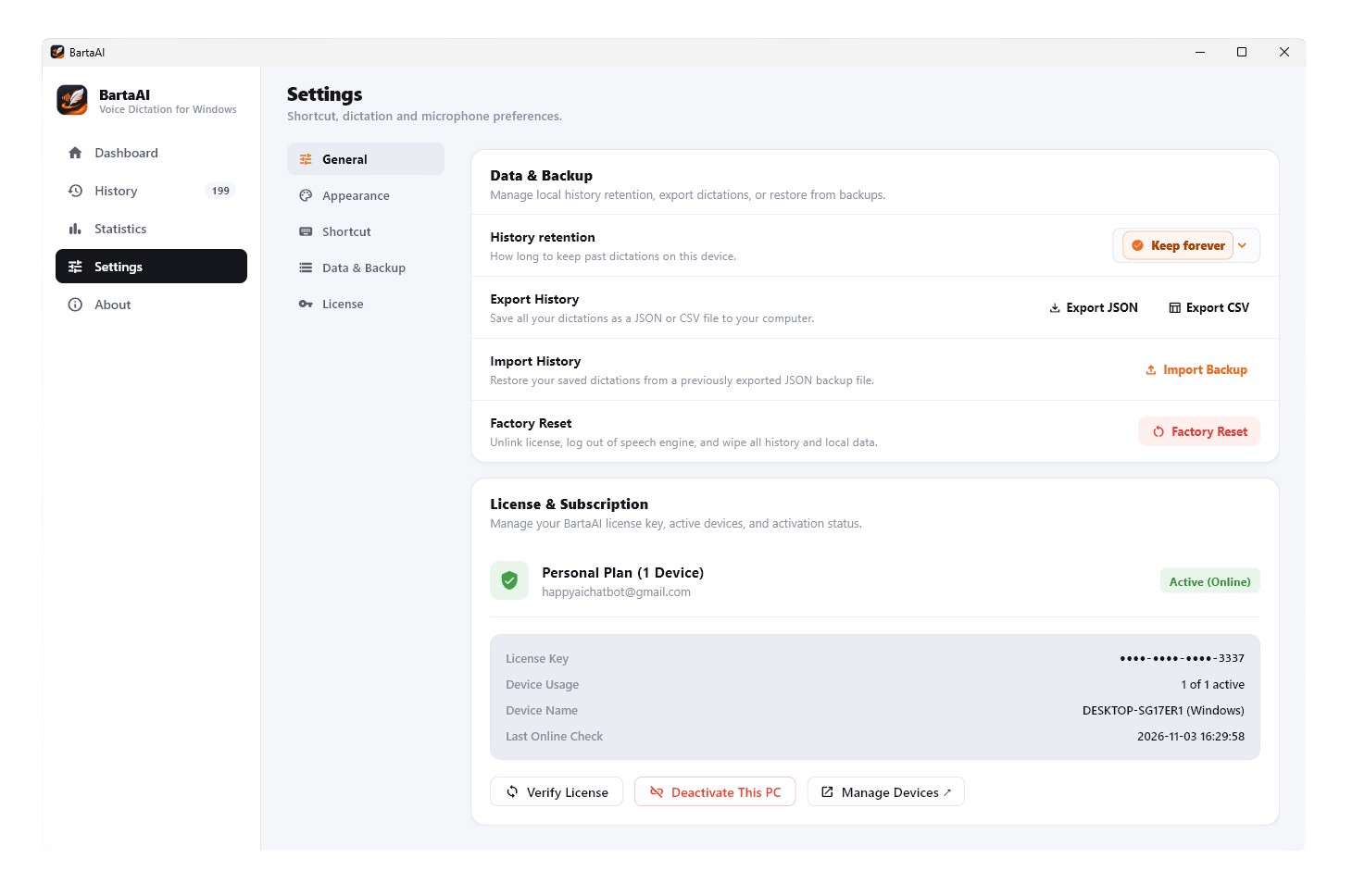
Under Settings → License (`License & Subscription`), inspect your active plan, check device slot usage, verify your license online, or unlink your current PC.
Screen 7 of 8: Settings — License & Subscription Status, Active Device Slot & Factory Reset🔍 Click for Full Screen
Managing Your License & Active Computers
Plan & Online Status: Displays your active tier (e.g., Personal Plan (1 Device) or Pro Plan (20 Devices)), associated email address, and green Active (Online) badge.
Hardware & Slot Telemetry: Shows your masked License Key (e.g., ••••-••••-••••-3337), Device Usage (1 of 1 active or up to 20 on Pro), Device Name (e.g., DESKTOP-SG17ER1 (Windows)), and Last Online Check timestamp.
Verify License / Deactivate This PC / Manage Devices ↗: Click Verify License to refresh status, click Deactivate This PC to free up your device slot so you can move BartaAI to another computer, or click Manage Devices ↗ to open https://app.lemonsqueezy.com/my-orders.
Factory Reset: Located in the Data & Backup card right above License settings, clicking Factory Reset unlinks your license key, logs out of the speech engine, and wipes local history and settings back to fresh install defaults.
Screen 8 · About Tab
8. About BartaAI, Version Specs & Help Resources
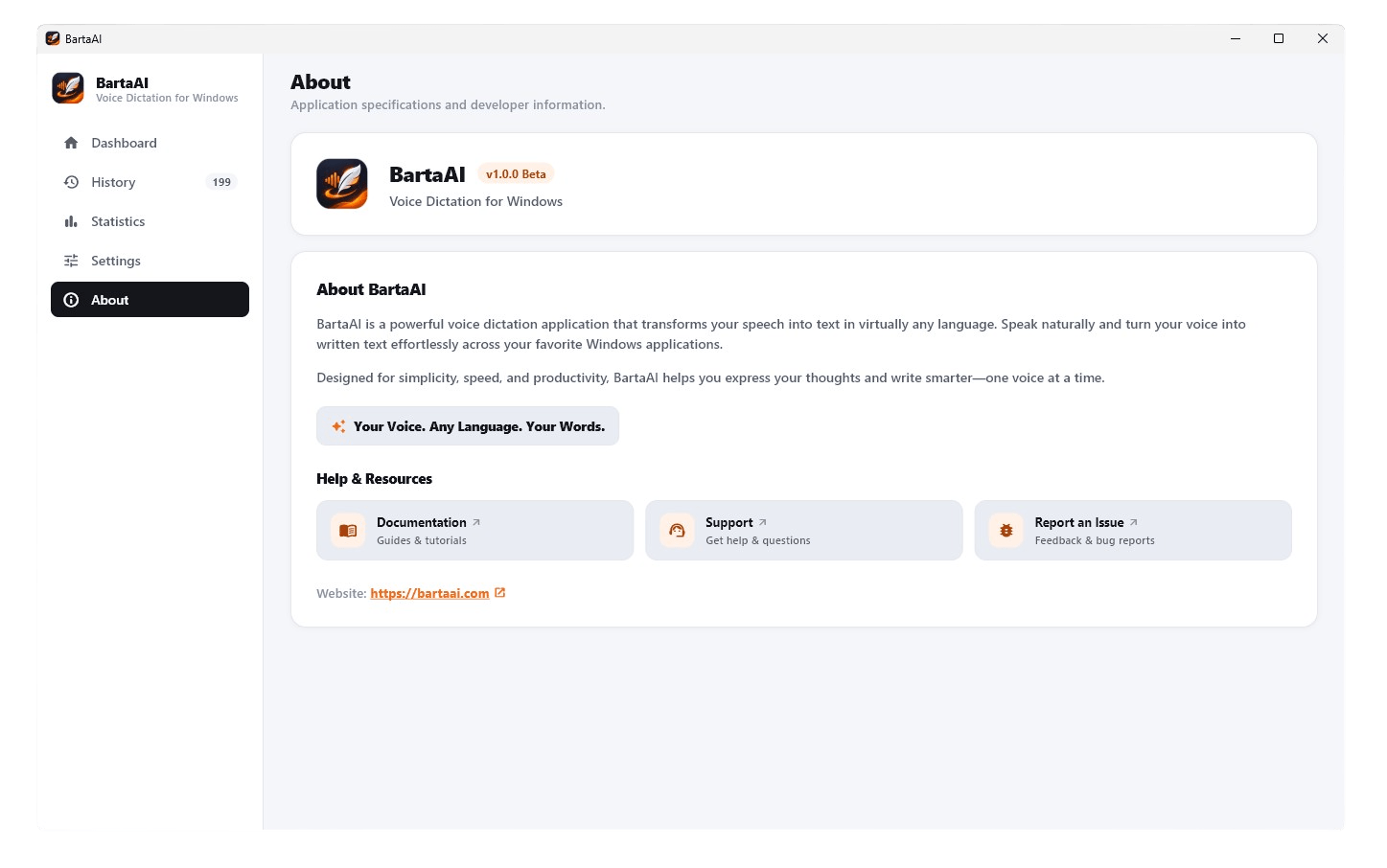
The About tab displays your installed application build and provides direct one-click shortcuts to Documentation, Customer Support, and Issue Reporting.
Screen 8 of 8: About Screen & Help Resources🔍 Click for Full Screen
In-App Help & Resource Shortcuts
Documentation ↗ (Guides & tutorials): Opens this online Documentation & Help Center.
Support ↗ (Get help & questions): Connects you to our Contact Us support page.
Report an Issue ↗ (Feedback & bug reports): Let our engineering team know if you encounter any bug or have a feature request.
Complete Visual Tour
9. Complete Software Screenshot Gallery (Click Any Image to Enlarge)
Click any of the 8 official BartaAI Windows application screenshots below to open the interactive full-screen Lightbox viewer with Previous/Next navigation and zoom controls:
1. Welcome & License Key🔍 Enlarge
2. Main Dashboard🔍 Enlarge
3. Dictation History🔍 Enlarge
4. Productivity Statistics🔍 Enlarge
5. Settings: General & Theme🔍 Enlarge
6. Settings: Shortcuts & Backup🔍 Enlarge
7. Settings: License & Devices🔍 Enlarge
8. About & Help Resources🔍 Enlarge
Troubleshooting
10. Frequently Asked Questions & Troubleshooting
Quick answers to common setup, licensing, and dictation questions:
Your license key is sent to your email immediately after purchasing BartaAI via Lemon Squeezy. You can also view and copy your license key (and manage your active device slots) anytime by logging into the official Lemon Squeezy portal at https://app.lemonsqueezy.com/my-orders.
No. Once you enter your license key on the Welcome screen, the main Dashboard opens with the built-in speech engine ready to go. Simply press Caps Lock or F8 in any Windows app to start voice typing immediately.
Open Settings → License (`License & Subscription`) and click Deactivate This PC, or visit https://app.lemonsqueezy.com/my-orders to remotely deactivate an old computer slot. Then paste your license key into the Welcome screen on your new PC.
Voice Mode 1 requires no login, no registration, and no setup—it works instantly out of the box once you activate your BartaAI license.
Voice Mode 2To use Voice Mode 2, you simply need to click Engine Login / Setup ▾ in the app to complete a quick, 100% free website signup. No credit card or paid subscription is ever required.